
Use a short clip to choose settings
Start with a copy of a short recording before processing your full clip. The ToolSprouts reducer plays the source and records the rendered video in your browser. A lower target bitrate can reduce bytes; lowering resolution also leaves fewer pixels competing for those bits. Neither setting guarantees a smaller result, especially when the source is already efficiently compressed.
For the example below, download the synthetic two-second test clip. It contains a test pattern and tone rather than personal footage. Using the same clip makes the comparison easier to reproduce.
Repeat the measured MP4 run
- Open the Video Size Reducer and select the downloaded clip.
- Choose 480p and Smaller · 0.6 Mbps.
- Choose MP4 if the browser offers it. Leave Remove audio unchecked for this run.
- Select Reduce video size and keep the tab visible until the result appears.
- Compare the actual result size, play the preview, and download the output for a check in your intended destination.
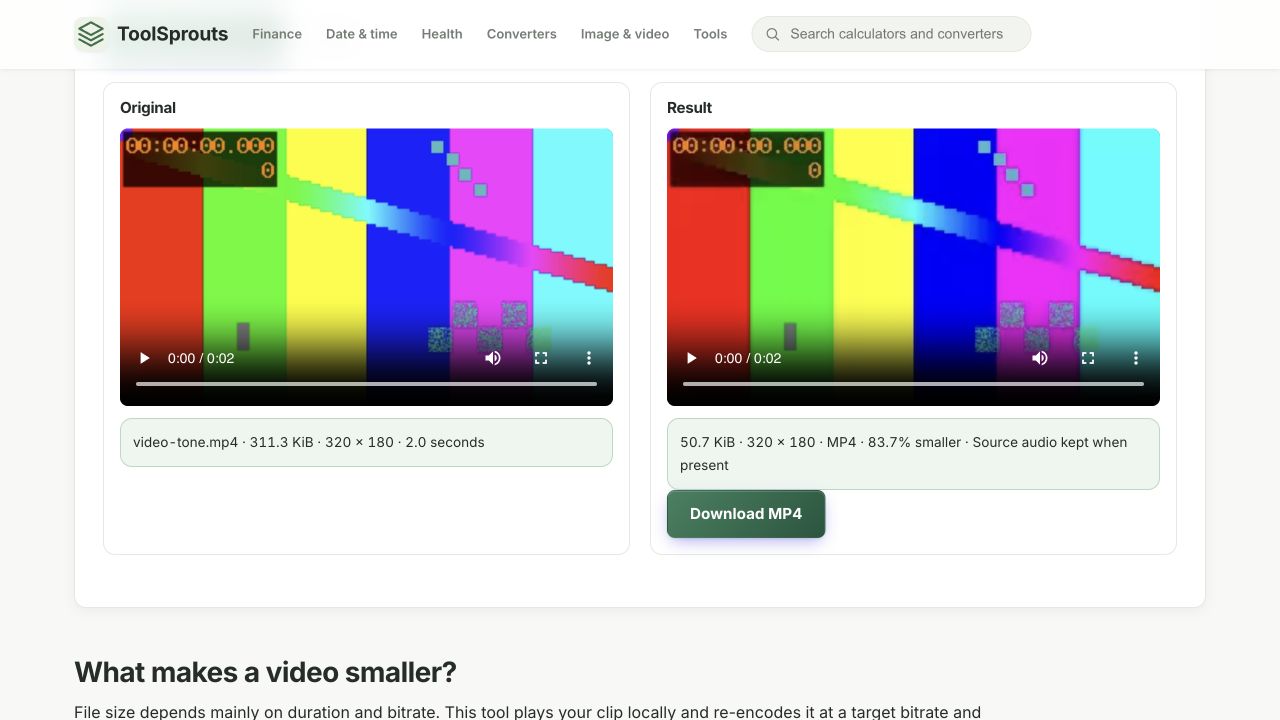
| Source | 311.3 KiB · 320 × 180 · 2.0 seconds |
|---|---|
| Settings | 480p maximum · 0.6 Mbps target · MP4 · Remove audio unchecked |
| Measured output | 50.7 KiB · 320 × 180 · 83.7% smaller |
| Observed time to result | About 2.4 seconds, including interface and setup time |
The source was already smaller than the selected resolution, so its dimensions stayed 320 × 180. The preview decoded successfully. Output size and timing vary with the clip, device, and browser. Soundtrack retention and downloaded-file playback were not independently verified in this run; check both before relying on your export.
An estimate is not the finished file size
For a 30-second clip with a 0.6 Mbps video target and 96 kbps audio target, the arithmetic estimate is 30 × (600000 + 96000) ÷ 8 = 2610000 bytes, approximately 2.49 MiB before container overhead. The recorder may use fewer or more bytes than the target suggests. Use the measured output as the decision point.
If the output is larger than the original, keep the original or try a lower bitrate or resolution. Do not replace a smaller source just because a compression operation finished. For important detail, compare moving edges, small text, and fast motion rather than judging only a paused frame.
Check compatibility and audio before sharing
- Play the exported file in the receiving app, not just the browser preview.
- Check the beginning and end for a complete clip.
- If you kept audio, listen for the expected track. If you removed it, verify silence.
- Compare actual file bytes with the destination's limit.
MP4 and WebM options depend on browser support, and recording can still fail when resources are limited. Switching tabs cancels a job. Inputs are limited to 200 MiB, five minutes, and 8.3 megapixels per frame. Output capture runs at up to 30 fps; subtitles, extra audio tracks, and original metadata are not retained. Keep an original copy for editing or archiving.
References and corrections
These examples describe the stated inputs and checks. They do not establish compatibility with every browser, encoder, or receiving service. Found a different result? Send a reproducible example.